Chapter 3. GraphiCAD

Table of Contents

User Interface
The Group Manager
Tools Panel
Drawing Tools
Sketch Tools
Holes Library
Trimming Tools
Dimensions
Text Tools
File Menu
FileNew
FileOpen
FileInsert
FileSave
FileSave As
FileImport
FileExport
FilePrint
FilePrint Setup
FileExit
Edit Menu
EditUndo
EditRedo
EditCut
EditCopy
EditPaste
EditDelete
EditMark Text By
EditMark All
EditUnmark All
EditReset Activity
EditMeasure
View Menu
ViewZoom
ViewFilled
ViewGrid
ViewArrows
ViewShow Picture On/Off
ViewMarkbox Dimensions
ViewFont Editor
Layers Menu
LayersAdd Layer
LayersErase
LayersShow All Layers
LayersHide All Layers
LayersShow Active Layer Only
LayersCombine
Transform Menu
TransformMove
TransformRotate
TransformScale
TransformMirror
TransformStretch
TransformParallel
TransformRidge
TransformShadow
TransformBlend Corners
TransformNesting
TransformFit on Chain
TransformBreak All
System Menu
SystemCustomize Toolbars
SystemSystem Options
Help Menu
HelpContents
HelpHow to Use Help
HelpAbout

User Interface

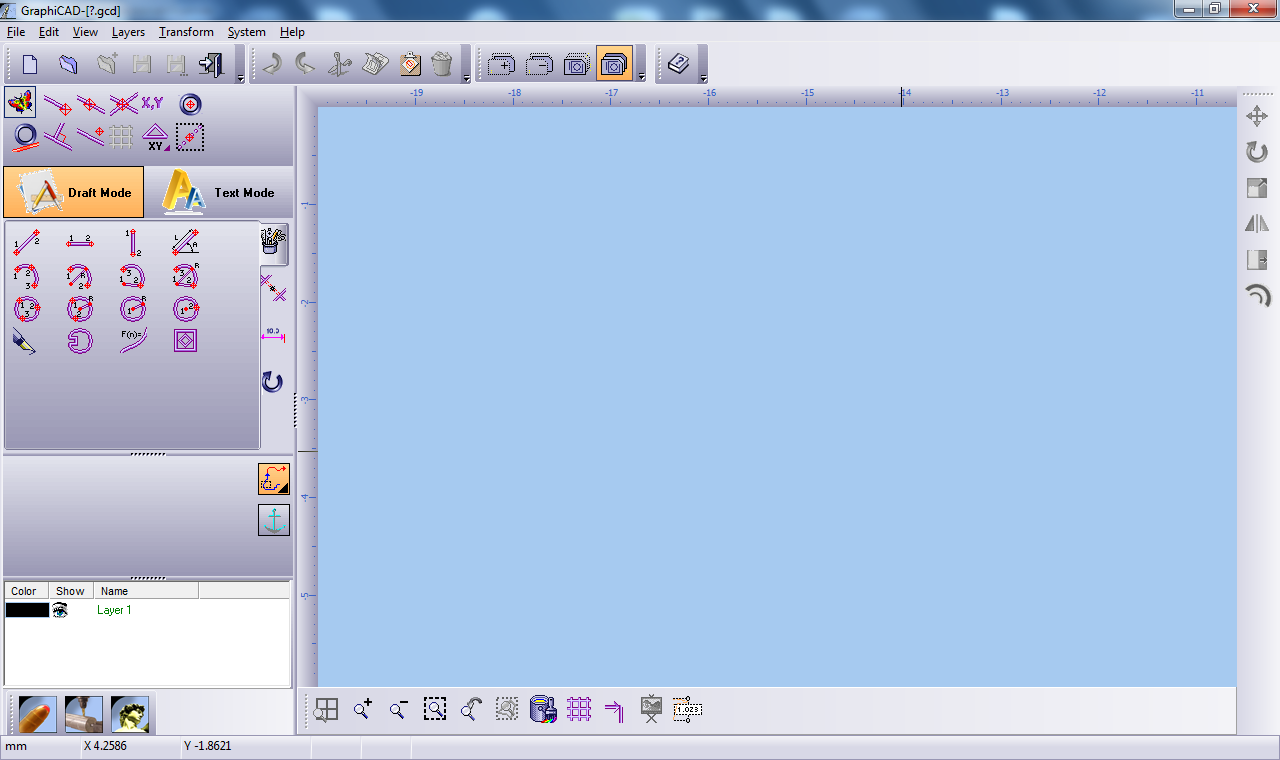
Main user interface window
1

Title bar:  Displays the name of the file you are working on.

2

The Close, Maximize and Minimize buttons.

3

Main menu:  Contains system commands, which are listed in the form of drop-down menus.

4

Toolbars:  These are shortcut areas, where you are able to add or delete icons from the defaulted list provided.

5

Work area:  Where editing of text and geometries are done.

6

Group manager:  In addition to the Layers menu, many operations can be performed directly in the Layer Manager area.

7

System toolbar:  Enables you to open other modules, and to cut copy and paste objects between them.

8

View toolbar:  Shortcut buttons for the View menu.

9

Status bar:  The application interaction area with the user. Displays varied information as system units, mouse cursor position etc.

10

Cursor Pick Type:  Specifies the type of cursor and operation you are working with.

11

Draft/Text toggle button:  This toggle button toggles between text and draft mode.

12

Tools panel:  The main drawing and writing tools of the GraphiCAD module. The Drawing and Verification Tools will vary according to the toolbox selected.

13

Message panel:  When user input is needed , it will appear in this area.

14

Marking modes:  Switch between marking modes.

15

Anchor:  Change marked elements reference point.

The Group Manager

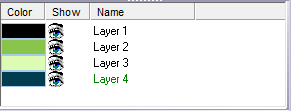
Group manager

Color When selecting a new layer, a color is automatically chosen for you. If you decide to select your own representative color for a layer, select the colored bar for the relevant layer:
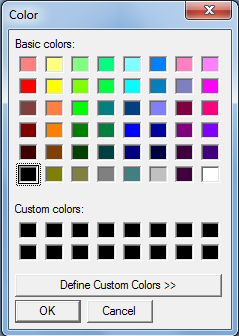
 Color picker dialogue
Select from the Basic colors or select Define Custom Colors to choose your preferred colors. This option contains all the 32-bit range of colors from the Microsoft Windows™ operations.
Show Enables you to select the layers you want displayed on an image. Ensure Show All Layers is selected from the Layers Menu; all the eye icons will be open. To hide or reveal a layer, click on the eye icon. A closed eye icon means the layer is hidden.
Name

To make a layer active click on the layer's name; the layer will be highlighted meaning it is active.

To change a layer's name right-click, and select Rename from the menu.

[Note] Note

Bold layer name - layer is not empty.

Italic layer name - layer is hidden.

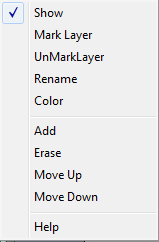
Group manager pop up menu

Show

Ensure the layer you want to display is highlighted, and select Show. To hide a layer, click on the eye icon. Show is a toggle switch operated by clicking on the eye icon.

Mark Layer

Mark all entities within the highlighted layer.

UnMarkLayer Un Mark all entities.
Rename Change group name.
Color Change Color.
Add Adds a new layer.
Erase Erase the current layer. All entities in this layer will be deleted (you will be prompted to confirm this action if entities are going to be deleted).
Move Up Enables you to move the highlighted layer up by one layer. The alteration in layers occurs both in the order of the group manager and visibly in the image. This function is useful when layer images overlap each other.
Move Down Enables you to move the highlighted layer down by one layer. The alteration in layers occurs both in the order of the group manager and visibly in the image. This function is useful when layer images overlap each other.
Help Opens the help file.

Tools Panel

Abstract

The tools panel contains the essential tools for handling geometries.

When the Draft/Text toggle button reads Text Mode, the tools panel is divided into 4 tabs:

 Drawing tools.
Contains the main drawing features of the GraphiCAD module. It enables you to construct single geometric elements. The drawing commands are repetitive and are terminated by pressing Esc or making a new selection.
 Trimming tools.
Contains a number of refining tools to ensure a more precise image. In addition it contains a search function to detect potentially problematic parameters.
 Dimensions.
Measures and, if required marks various dimensions of an image.
 Transformations.
Enables the fine-tuning and adapting of the geometric design.

When the Draft/Text toggle button reads Draft Mode, the tools panel shows the text parameters and tools.

Drawing tools.

 Diagonal straight line.
A free line is defined by its two end points. No limitations exist for the length and angle. Click on the mouse to define the end points.
 Horizontal line.
Two points define a horizontal line: The first point represents the line start, and the second point represents a virtual line whose projection on the X-axis results in a horizontal line. Click on the mouse to define the end points.
 Vertical line.
Two points define a vertical line. The first point represents the line start, and the second represents a virtual line, whose projection on the Y-axis results in a vertical line. Click on the mouse to define the end points.
 Line with defined Length / Angle.

This option allows you to enter the line angle (in degrees) and the length (in units). Selecting this option causes the following window to appear:

Figure 3.1.  Line with defined Length / Angle

 Line with defined Length / Angle input form.

Default values are: Force Length to = 1 unit. Force Angle to = 0°. Any subsequent lines will be projected to this angle and length.

Enter the necessary values and click once with the mouse where you want the start point to be. Cancel this mode by selecting Reset Activity from the Edit menu, by pressing Esc or by selecting any icon on the drawing tab.

 Arc defined by 3 points.
Three points on the circumference define this arc. The first point is the arc start, the second is anywhere on the arc edge (but defines radius and direction) and the third point is the arc end point. Click the mouse in three different locations to define the 3-point arc.
 Arc defined by 2 points and radius.

Two points (start point and end point) and an entered value represents the radius that defines this arc.

Enter the arc’s radius in the radius dialog box:

 Radius input form.

And then click on the mouse to enter the two points.

 Arc by center, 1st point/rad and second.
The first point defines where the arc center is, the second point specifies the start point, and the third point is the end angle. This arc is CCLW. Click on the mouse to place each point.
 Arc by center, radius and edges.

This arc is defined similarly to the above arc, except the second point does not define the radius. The radius is defined by the radius dialog box.

Enter the arc’s radius in the radius dialog box:

 Radius input form.

The second and third points define only start and end angles. This arc is CCLW.

 Circle by 3 points.
Three points on the circumference define this circle. Click on the mouse to define the three points.
 Circle by 2 points and radius.

Two points (start point and end point) and an entered value represents the radius that defines this circle.

Enter the circle’s radius in the radius dialog box:

 Radius input form.

Click on the mouse to enter the first two points on the circle.

 Circle by center and radius.

A center point and the radius define this circle.

Enter the circle’s radius in the radius dialog box:

 Radius input form.

Click the mouse to define the center point. The radius must be a positive value.

 Circle by center point and edge.
Two points define this circle. The first point defines the center point. The distance from the first point to the second point defines the radius. Click the mouse to define the two points.

Sketch tools.

Sketch icon

The sketch function enables you to digitize a contour. You can select any clicking option (Free, End Entity, Mid, Center, Grid) to create continuous connected entities.

Figure 3.2. Sketch Dialogue

Sketch dialogue

Arc

To draw arcs, select the Arc radio button. An arc requires:

One click to define an arc that is tangent to a previously sketched entity.

Two clicks: one for the arc end-point and the second for defining the circumference. This option is active in corner sketching mode.

Three clicks: first arc on a sketching chain requires start-point, the second for end-point and the third for defining the circumference.

Line

To draw lines, select the Line radio button. A line requires one click: for the line end-point (except from the first line on a sketching chain that requires two points for start-point and end-point).

Curve

Draws a spline curve.

Corner

The default is Corner sketching, which means that sharp corners will connect two neighboring entities:

Corner example

Tangent

To create smoother chains, select Tangent. Each entity that comes after an arc or is an arc itself, will be displayed as tangent to the previous entity:

Tangent example

Snap 5

Forces diagonal lines to set to the nearest 5° line. This is useful when sketching over geometry that involves parallel lines. The sketched lines will be parallel even with non-accurate digitations. Arcs are affected by their end angle to match the 5° roundup.

New icon New Shape Start a new chain on the next click position, disconnected from the previous one.
Loop icon Loop

Automatically connect the edges of the last sketched chain in a straight line to form a closed contour.

Loop example


Holes Library
 Obround and D-holes.

Using hole library is practical when common geometries with a difference in dimensions must be drawn. You can create a library of commonly used holes. These holes can be loaded when necessary, speeding up your drafting tasks.

Two common geometries are supported in the GraphiCAD module:

  • Obround Holes.

  • D-Holes.

(both used mainly for electronic panels).

Figure 3.3.  Hole Library, Obround.
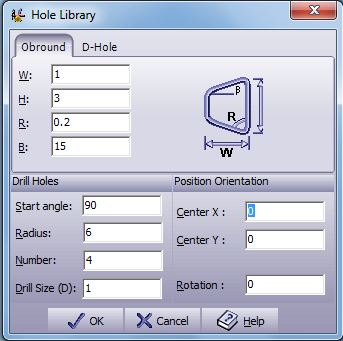
 Hole library form, obround.

Position orientation Enter the Center X and Center Y coordinates of the center point of the hole. Enter the Rotation angle of the hole.
Drill Holes

These parameters enable you to define additional drills in a circular manner around the main hole itself.

Start angle The angle for the first hole. Angle 0 is located at the right side of the hole.
Radius The distance between the hole’s center and the outside drill’s center.
Number The number of holes that a 360° circle contains.
Drill Size (D) The diameter of the drill holes.

Hole dimensions are defined according to the schematic drawing in the dialog box. Press OK to produce the holes. Press Cancel to exit without changes. Press Help to enter the On-line Help.

In a similar manner, select D-Hole to set D-Hole parameters according to the D-Hole diagram. Select the D-Hole tab to define D-hole parameters.

Figure 3.4.  Hole Library, D-Hole.

 Hole library form, D-Hole.

 Curve by function.

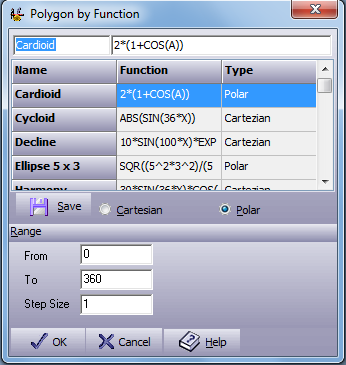
This function enables you to generate a polyline based on a mathematical function. A basic knowledge of mathematics is required. Press this button to open the dialog box below.

Figure 3.5.  Polygon by Function

 Polygon by function.

Function description The upper left field is a general description given to the function. There are no restrictions on the name.
Cartesian Polar This indicates which type of function is being handled.
From Defines the lowest range of the function.
To Defines the highest range of the function.
Step Size The system generates a linear polyline. The step controls the smoothness and numbers of lines generated.
Function formula

The right upper field is the actual function to be calculated. The function must be in the form of:

Y=F(x) or X=F(y) or A=F(r) or R=F(a)

The function supports the following operators:

+ Plus - Minus
* Multiply / Divide
^ Power ASIN Arc sin
ACOS Arc cosine ATAN Arc tangent
SIN Sin COS Cosine
TAN Tangent LOG Log
EXP Exponent SQR Square root
ABS Absolute INT Round to closes integer

[Note] Note

Make sure to open and close the correct number of brackets to achieve correct results.

Example . 

Cartesian COS(X)*EXP(SQR(X))
Polar COS(A)+8

Function List The list includes pre-defined functions and functions that you saved. Selecting a function from the list will place it in the active field’s area at the top of the dialog box.
 Save Save Save your own functions for future use.

 Frames and polygons.

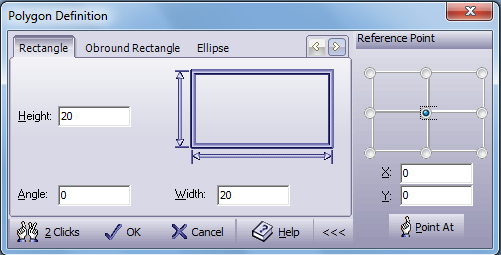
Open the polygon definition dialog box and enter the relevant values for the parameters. You can select from five tabs:

  • Rectangle - Create a simple rectangle frame.

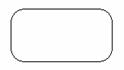
  • Obround Rectangle - Create a rectangle with round corners.

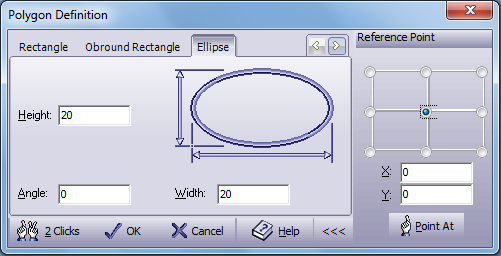
  • Ellipse - Create an ellipse frame.

  • Regular N-Gon - Define polygons of several shapes.

  • Star - To create a star.

Below is an example of the dialog box for the creation of a rectangle. This includes the display of the advanced features, which is activated by selecting the advanced mode button Advanced mode buttonon the bottom right of the dialog box. The button is a toggle operation that opens and closes the advanced features section.

Figure 3.6.  Polygon Definition Form, Rectangle

 Polygon definition form, rectangle.

The advanced feature section appears in all five polygon definition modes: The location of the reference point relative to the frame defined by the nine radio buttons, and the absolute location of the reference point on the job’s screen. Select the absolute point by entering the coordinate values in the X,Y edit boxes, or press Point AtPoint At to point on the screen for the chosen point.

Rectangle . 

Height Enter the height in units (mm, inch) of the desired rectangle.
Angle Enter the rotation angle of the frame around the center.
Width Enter the width in units (mm, inch) of the desired rectangle.
 2 Clicks 2 Clicks Set the opposite corners of the rectangle by clicking the mouse twice.

Obround Rectangle .  Draw a rectangle with blended corners by defining height, width, radius and position.

Figure 3.7.  Polygon Definition Form, Obround Rectangle

Polygon definition form, obround rectangle

Outside Corners

Create outside arcs on the corners of the rectangle.

Figure 3.8.  Outside Corners

 Outside corners

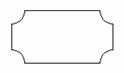
Inside Corners

Create inside arcs on the corners of the rectangle.

Figure 3.9.  Inside Corners

 Inside corners

Height Enter the height in units (mm, inch) of the desired rectangle.
Angle This parameter defines the rotation angle of the frame around the reference point you defined.
Radius Enter the radius value for the arc’s corners.
Width Enter the width in units (mm, inch) of the rectangle you wish to create.
 2 Clicks 2 Clicks Set the obround rectangle opposite corners by clicking the mouse twice.

Ellipse .  Draw an ellipse by defining height, width, angle and position.

Figure 3.10.  Polygon Definition Form, Ellipse

 Polygon definition form, ellipse

Height Enter the height in units (mm, inch) of the desired ellipse.
Angle This parameter defines the rotation angle of the ellipse around the center.
Width Enter the width in units (mm, inch) of the ellipse you wish to create.
 2 Clicks 2 Clicks Set the ellipse opposite corners of a bounding rectangle set to the specified angle by clicking the mouse twice.

Regular N-Gon .  Draw a polygon by defining radius, number of vertices and position.

Figure 3.11.  Polygon Definition Form, Regular N-Gon

 Polygon definition form, regular n-gon

Radius to Corner Select this option to attach the corners of the polygon to the circle defined by the radius value. The defined circle will bind the created polygon.
Radius to Edge Select this option to attach the edges of the polygon to the circle defined by the radius value. The polygon will bind the defined circle.
Radius Enter the radius of the circle surrounding or surrounded by the polygon.
Angle This parameter defines the rotation angle of the polygon around the center.
# Vertices This parameter defines the number of vertices from which you want to create the polygon (minimum number is three).
 2 Clicks 2 Clicks Set the N-Gon opposite corners by clicking the mouse twice. The N-Gon angle is also set by this option.

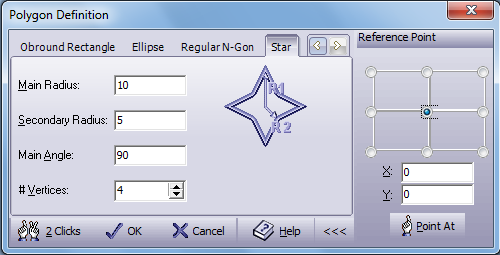
Star .  Draws a star by defining 2 radii, a rotation angle and the number of vertices.

Figure 3.12.  Polygon Definition Form, Star

 Polygon definition form, star

Main Radius Enter the height in units (mm, inch) of the maximum size of the star.
Secondary Radius Enter the height in units (mm, inch) of the smaller radius of the star.
Main Angle This parameter defines the rotation angle of the star around the reference point you defined.
# Vertices This defines the number of vertices the star will have (3, 4, 5).
 2 Clicks 2 Clicks Set the star opposite corners by clicking the mouse twice. The star angle is also set by this option.

Trimming tools.

 Trim first entity with second entity.
Click on the element to be trimmed. A second click selects the entity that will trim the first entity.
 Trim two entities.
Select the two entities you want to trim.
 Trim all entities between two entities.
Erase the picked entity/chain that lies between two intersections or end points. Click on the parts to be trimmed.
 Multiple select mode.

If pressed, the system will show all the possible solutions. Moving the cursor over the possible solutions will highlight the solution beneath the cursor in a thick drawing. Clicking on the highlighted solution will select it.

Example.  Trimming arcs or against circular entities, several trimming possibilities are enabled. If this occurs, the most likely result is performed.

Figure 3.13.  Multiple Select Mode Trimming an Arc
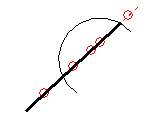
 Multiple select mode trimming an arc

Any of the small circles represents one of the possible solutions for the trimming operations.

 Blend specified radius.

Trim and round a corner at the same time so that an arc replaces the corner. The blend radius dialog box appears and enables you to enter the radius value of the arc to round the two segments. Place a check mark in the box Automatic Trimming.

Figure 3.14.  Blend Radius Dialog

Blend radius dialog

To blend a corner, click on the first element and then on the second element to be trimmed and rounded.

 Chamfer specified length.

Chamfer between two entities. The chamfer dialog box will open, enabling you to define the distance of the chamfer’s end points from the intersection point. You can also select whether you want Automatic Trimming of the entities after chamfering.

Figure 3.15.  Chamfer Specified Length Dialog

Chamfer specified length dialog

After you have finished entering the value, point and select the two entities between which you want to create a chamfer. The two entities must have at least one intersection point (real or virtual). You will be prompted to select the desired chamfer you want by clicking on it with the mouse. If you select Automatic Trimming and there is no real intersection point, the entities will be enlarged until they reach the chamfer location.

 Break entity.

Break a chain or an entity using three different modes: Distance, Sections and Manual.

Figure 3.16.  Break Entity Dialog

Break entity dialog

Distance: Enter the distance in units (mm, inch) of each break. The distance is calculated from the end point of the entity or chain.

Sections: Enter the number of sections you want the entity or chain broken into.

Manual: Click on the image the areas where you want to break the entity or chain.

[Note] Note

To view where the breaks have occurred select ViewArrows. Then click on the entity or chain which is to be broken.

 Edit entity.

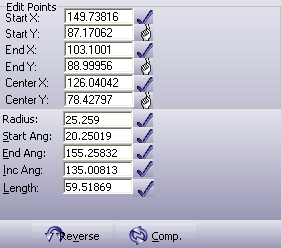
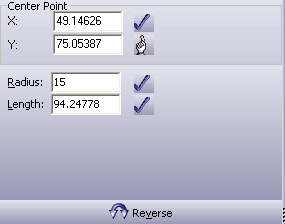
Verify and edit the different parameters of primitive entities you have created (lines, arcs and circles). The edit box then opens, displaying the current parameter values of the selected entity.

Figure 3.17.  Edit Entity Dialog, Line

Edit entity dialog, line

Figure 3.17.  Edit Entity Dialog, Arc

Edit entity dialog, Arc

Figure 3.17.  Edit Entity Dialog, Circle

Edit entity dialog, circle

You can change any value by entering a new value in the chosen parameter edit box and pressing the V

You can also change some parameters directly on screen by selecting Point at and pressing the left mouse button on the required place. After editing one entity, you can choose another by selecting it. The edit dialog box is then updated according to the type of entity you selected and displays the new values for the different parameters.

This editing tool enables you to select and edit similar entities, such as two lines. The selection is accomplished by pressing Ctrl while selecting an entity. After selecting the entities you wish to edit, all changes you perform in the edit dialog box will apply to those entities.

In the Edit dialog box you can also reverse the direction of the selected entity and in the case of arcs you can also get the complementary arc of the one selected.

 Searcher.

The Searcher has the ability to find and correct overlapping vectors, disconnected chains and looped entities. Mark intersections and reduce the number of entities in the file.

When activated the following dialog box appears:

Figure 3.18.  Searcher Dialog

Searcher dialog

Press the  Process Process button to check for problems according to the marked check boxes:

  • Overlapped Entities: These are entities that overlap each other in full or partially. Overlapped entities might cause trouble during chaining and machining procedures. These entities will be automatically identified by a thick line and marked. You can then delete them using the Delete button.

    Figure 3.19.  Overlapped Entities Example

     Overlapped entities example

  • Disconnections: These are end points of basic entities (lines and arcs) that are not connected to any other entity end point. Red diamond shapes mark these ends. Press Esc to hide all the check results. The Disconnections option is defaulted to connect entities, which are apart by 0.01mm or less. To increase or decrease the default setting, select SystemOptions. Select the GraphiCAD tab. In the Gap Tolerance box enter the default setting.

    Figure 3.20.  Disconnections Example

     Disconnections example

  • Loops: These are entities that overlap themselves, for example the figure ‘8’ is a looped entity. However when transferring images from Trace there may be unwanted loops. These can make the image less exact and cause difficulties in the chaining and machining procedures. Loops are marked by red diamonds. The Loops option is defaulted to detect over 0.05mm in circumference. To increase or decrease the default setting, select SystemOptions. Select the GraphiCAD tab. In the Loop Tolerance box enter the default setting.

    Figure 3.21.  Loops Example

     Loops example

  • Intersections: Intersections are marked by red diamonds.

Auto Fix: Selecting this option and then selecting Process automatically corrects the selected options.

Statistics.  The right side of the window shows a tree diagram of all the drawing contents, sorted by type (lines, arcs, circles, characters, text lines, text paragraphs), organized in layers and summarized. You can expand any tree branch by clicking the [+] sign at the base of the branch, or collapse it by clicking the [-] sign.

Dimensions

 Add horizontal measurement

Display the horizontal measurement of an entity onto an image. A measurement can only be taken from the end point of an entity.

To operate this function 3 Clicks are needed:

  • The first click is to be placed on, or close to, the start of the entity to be measured.

  • The second click is to be placed on, or close to, the end of the entity to be measured.

  • The third click is where the horizontal line and its measurement are to be displayed.

Below is an example of how the horizontal measurement of a polygon is displayed.

Figure 3.22.  Horizontal Measurement Example
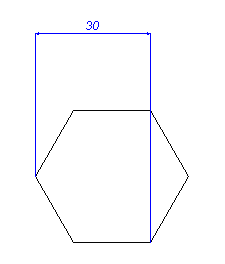
 Horizontal measurement example

To enter alternative text or figures to the measurement on the diagram, press the Esc key to exit measurement mode. Double-click the measurement line and enter the desired text in the text box. Press Enter to display alteration.

[Note] Note

By opening a measurement option, a new layer is created in the layer manager called Dim layer. The Dim layer stores all the dimensions on the current work area. You can work in this layer, but this is not advisable.

 Add Vertical measurement

Display the vertical measurement of an entity onto an image. A measurement can only be taken from the end point of an entity.

To operate this function 3 Clicks are needed:

  • The first click is to be placed on, or close to, the start of the entity to be measured.

  • The second click is to be placed on, or close to, the end of the entity to be measured.

  • The third click is where the vertical line and its measurement are to be displayed.

Below is an example of how the vertical measurement of a polygon is displayed.

Figure 3.23.  Vertical Measurement Example
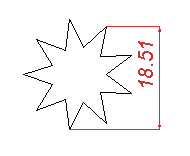
 Vertical measurement example

To enter alternative text or figures to the measurement on the diagram, press the Esc key to exit measurement mode. Double-click the measurement line and enter the desired text in the text box. Press Enter to display alteration.

[Note] Note

By opening a measurement option, a new layer is created in the layer manager called Dim layer. The Dim layer stores all the dimensions on the current work area. You can work in this layer, but this is not advisable.

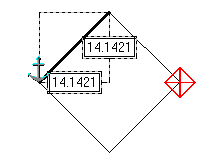
 Add length measurement

Display the length of an entity onto an image. A measurement can only be taken from the end point of an entity.

To operate this function 3 Clicks are needed:

  • The first click is to be placed on, or close to, the start of the entity to be measured.

  • The second click is to be placed on, or close to, the end of the entity to be measured.

  • The third click is where the length measurement is displayed.

Below is an example of how the length measurement of a rectangle is displayed.

Figure 3.24.  Length Measurement Example
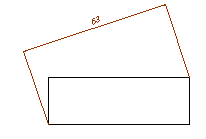
 Length measurement example

To enter alternative text or figures to the measurement on the diagram, press the Esc key to exit measurement mode. Double-click the measurement line and enter the desired text in the text box. Press Enter to display alteration.

[Note] Note

By opening a measurement option, a new layer is created in the layer manager called Dim layer. The Dim layer stores all the dimensions on the current work area. You can work in this layer, but this is not advisable.

 Add radius measurement

Display the radius of an arc or circular entity onto an image. A measurement can only be taken from the end point of an entity.

To operate this function 2 Clicks are needed:

  • The first click is to be placed on, or close to, the entity to be measured.

  • The second click is where the radius measurement is to be displayed.

Below is an example of how the radius measurement of an arc is displayed.

Figure 3.25.  Radius Measurement Example
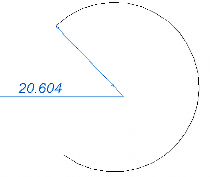
 Radius measurement example

To enter alternative text or figures to the measurement on the diagram, press the Esc key to exit measurement mode. Double-click the measurement line and enter the desired text in the text box. Press Enter to display alteration.

[Note] Note

By opening a measurement option, a new layer is created in the layer manager called Dim layer. The Dim layer stores all the dimensions on the current work area. You can work in this layer, but this is not advisable.

 Add diameter measurement

Display the diameter of a circular entity onto an image. A measurement can be taken anywhere on the edge of the circle.

To operate this function 2 Clicks are needed:

  • The first click is to be placed on, or close to, the entity to be measured.

  • The second click is where the diameter measurement is to be displayed.

Below is an example of how the diameter measurement of a circle is displayed.

Figure 3.26.  Diameter Measurement Example
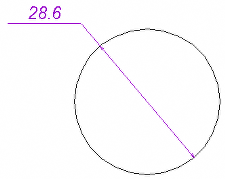
 Diameter measurement example

To enter alternative text or figures to the measurement on the diagram, press the Esc key to exit measurement mode. Double-click the measurement line and enter the desired text in the text box. Press Enter to display alteration.

[Note] Note

By opening a measurement option, a new layer is created in the layer manager called Dim layer. The Dim layer stores all the dimensions on the current work area. You can work in this layer, but this is not advisable.

 Add angle measurement

Display the angle measurement of two connected entities. The angle is measured in an anti-clockwise direction.

To operate this function 3 Clicks are needed:

  • The first click is to be placed on the first entity. The default setting will place a red diamond in the center of the entity.

  • The second click is to be placed on the second entity. The default setting will place a red diamond in the center of the entity.

  • The third click is where the angle measurement is to be displayed.

Below is an example of how an angle measurement is displayed.

Figure 3.27.  Angle Measurement Example
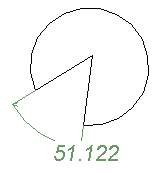
 Angle measurement example

To enter alternative text or figures to the measurement on the diagram, press the Esc key to exit measurement mode. Double-click the measurement line and enter the desired text in the text box. Press Enter to display alteration.

[Note] Note

By opening a measurement option, a new layer is created in the layer manager called Dim layer. The Dim layer stores all the dimensions on the current work area. You can work in this layer, but this is not advisable.

Transformations.

The functions of the Transformation Toolbox are accessible by clicking the Transform menu.

Text Tools.

 Height
Vertical length (in units) of a capital letter in the selected font. This is known as the typical height.
 Aspect ratio
The ratio of the character height to width in the selected font. An aspect ratio of one maintains characters at the original size. Values greater than 1 make letters wider, and values less than 1 make letters thinner. Negative values create a mirror image of the letter.
 Distance
This value is added to the automatic kerning calculation.
 Kerning

The distance between letters can be defined as constant, proportional, or kern methods.

  • Width – The distance between adjacent characters will be calculated as the closing rectangle distance plus the factor (% of character height).

  • Constant – The space between adjacent characters will be calculated as a fixed distance (from the lower left corner of each character to the lower left corner of the next one) in % of character height as defined by the distance parameter.

  • Kern – The distance between two marked characters is calculated according to each character's specific geometry so characters will not overlap or be spaced far apart, plus the factor (% of character height).

 Slant
Define the slant of the letters. Positive values up to 45° slant characters to the left. Negative values slant characters to the right. A value of zero puts characters in the default upright position. Values may range from -45° to +45°.
 Rotation
Rotates each character separately. The rotation angle is measured in degrees and is used mainly in non-horizontal text lines.
 Space size
This parameter changes the size of the blank between the words. The parameter is expressed in percentage where 100% means full blank size that is equal to the typical height.
 Line direction
This parameter changes the next line direction (i.e. left-to-right, right-to-left, top-to-bottom, etc.). The line direction is measured in degrees. Mark the complete line to change an existing line's direction. This parameter is paragraph oriented, i.e. you must start a new paragraph in order to put this parameter into effect.
 Line distance
Sets the distance between lines. The distance is between two consecutive lines, relative to their text bottom guideline. The line that holds the text cursor defines the origin from which the line distances will be measured. From this line, previous lines will move up and next lines will move down.
 Font
Display the font dialog pick box. The current font name is displayed.
 Apply
Incorporates altered parameters to marked text.
 Manual change
Mark the text you want to alter. Select one of the available text parameters, by clicking in its text box. Drag the cursor in the Work Area to the location / height / angle, you require.
 Default parameters
Reset all the text parameters as listed in SystemOptions.
 Copy text parameters
Copy and apply text parameters to alternative text. Place the cursor in the text area containing the parameters you require; the text parameters are displayed in their text boxes. Click on the Copy/Apply icon. Drag a rectangle around the text you want to adapt. Release the left mouse button; the marked text will incorporate the new text parameters.
 Align left

Align left.

Figure 3.28.  Align Left Example.
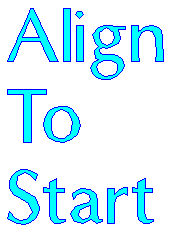
 Align left example

 Align right

Align right.

Figure 3.29.  Align Right Example.
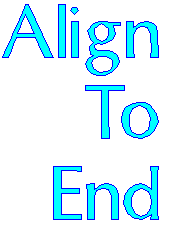
 Align right example

 Align to center

Align to center.

Figure 3.30.  Align To Center Example.
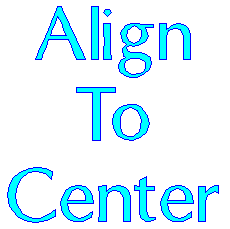
 Align center example

 Justify top

Aligns all the marked characters along the tops of the characters.

Figure 3.31.  Justify Top Example
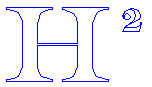
 Justify top example

 Justify middle

Aligns all the marked characters through the center of each character.

Figure 3.32.  Justify Middle Example
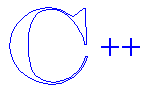
 Justify middle example

 Justify bottom

Aligns all the marked characters along the bottoms of the letters. This is the default alignment for the system.

Figure 3.33.  Justify Bottom Example
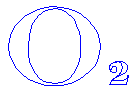
 Justify bottom example

 Position text in frame

Aligning paragraphs into frames is useful when positioning several text groups on the layout. The marked text is aligned to the active frame. Upon selecting this option from the command bar, the following dialog box appears:

Figure 3.34.  Position Text In Frame Dialog

Position text in frame dialog

Frame Alignment dialog box contains one parameter to be specified out of nine options. A radio button specifies the parameter. Three types of alignment are possible: Scale, Stretch, and Spaces, and Center.

Scale This option changes the total scale of the text, keeping all the proportions between text size and space unchanged. The scale can be changed to fit the frame's width or height, or to center the text to the frame without changing its scale.

Figure 3.35.  Scale Example
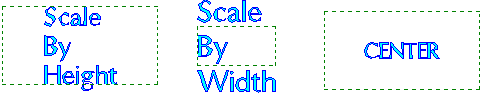
 Scale example

Stretch This option changes the text aspect ratio and size. The spaces between the characters are changed by the same factor, thereby maintaining the same text to space ratio as before. Stretch can be done to fit the frame's width, height, or both to form a rectangular block.

Figure 3.36.  Stretch Example

 Stretch example

Spaces This option does not change the text size or aspect ratio, but recalculates the spaces between the characters and between the lines in order to adjust to the frame's rectangle. Spaces can be set to fit the frame's width, height, or both.

Figure 3.37.  Spaces Example

 Spaces example

[Note] Note

Frame alignment is an appended command, i.e. the results are based on the previous text location. Therefore, it is highly recommended to Undo the last frame alignment before trying another one.

Approve the dialog box settings by pressing 2
Clicks and then clicking on the bounding rectangle opposite corners. To exit the dialog box without changes, press Cancel.

 Set text on straight line

Sets the marked text on straight line.

 Set text on ellipse

Change the physical location of any character group, and fit the marked lines on the contour of a circle or an ellipse.

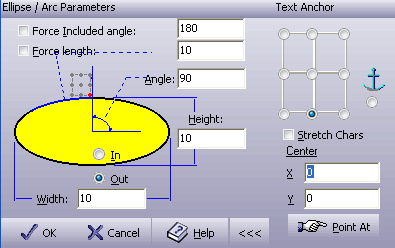
Figure 3.38. Position On Ellipse

Text Along, Ellipse

Position on ellipse

The Advanced Mode Button Advanced mode button is found on the bottom right of the screen. The button is a toggle operation, which opens and closes the Advanced Features section.

Figure 3.39. Position On Ellipse, Advanced Mode

Position on ellipse, advanced mode

Text Anchor Selects the anchor point for the character group. The top, middle and bottom lines specify whether the characters top, middle or bottom will match the specified ellipse circumference. The left, middle and right columns specify whether the left side of the marked text block, center or right side will match the angle field.
Stretch Character Places characters directly on the ellipse, by applying the curvature of the ellipse to the base of the text.
Center X and Y coordinates of ellipse's center.
Force Included Angle Force text of unknown size into a known angle on the circumference of a circle.
Force Length Sets the text length to fixed dimensions. The text is scaled by aspect ratio and spaces, so that the letters get wider or narrower to fit the desired length.
Width , Height Define the ellipse size (in units). To form a circular contour, the Width and Height values must be equal.
In / Out

Select In to place text inside the ellipse.

Select Out to place text outside the ellipse.

Angle

Sets the anchor column position in degrees. An angle of 90° is the top of the ellipse, and an angle of 270° is the bottom of the ellipse.

Ellipse angle example

In this example, the center of the anchor was selected. Ang 90° was set as Out and the rest of the text was set as In.

When all the parameters are set, click the Point At button and use the mouse to select the ellipse location, or set the Center X and Y fields and press the OK button.

 Set text on curve

Setting the marked lines of text along a curve or between two curves:

Figure 3.40. Fit on Curve

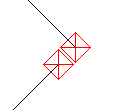
symbol along curve

Fit on curve

Figure 3.41. Fit on Curves

Fit on curves

Figure 3.42. Symbol Along Curve, One Curve

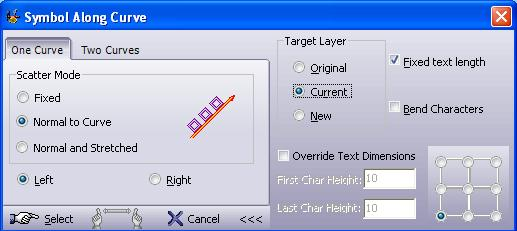
Symbol along curve, one curve

Table 3.1.  Scatter Mode

Fixed
 FixedThe characters keep their original angle.
Normal
 NormalThe characters centerline is always normal to the curve. No collision check is made between sequential characters.
Normal and Stretched
 Normal and stretchedThe character base size is fixed, and the top size is changed according to the curvature in order to prevent neighbor character collision.

Left/ Right

Set the text along the curve in the curve left or right side. The side can be viewed using the View Arrows command.

 Select
Click on a baseline for the text to appear.
 Point
The Point icon appears when Fixed mode is not selected. Select the start-of-curve and the system will chain the curve until its end. The whole curve will be considered.

Figure 3.43.  Symbol Along Curve, Two Curves

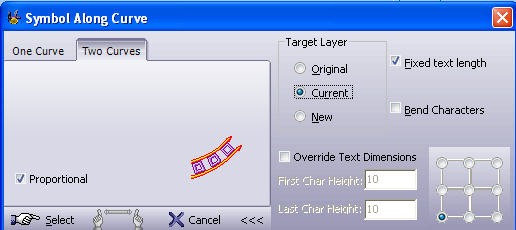
Symbol Along Curve Two Curves

Symbol along curve, two curves

The system stretches the text to fit into the space between two curves. The two curves have to be chained at the same direction.

Figure 3.44.  Fit Between Two Curves

fit between two curves

Proportional

Keep the text aspect ratio (hence taller characters will be proportionally wider). If this box is not checked, the text will be stretched along the two curves without changing its width according to a single character height.

Figure 3.45.  Symbol Along Curve, Advanced Mode

Symbol Along curve

Symbol along curve, advanced mode

Table 3.2.  Target Layer

Original Leave the entity in its original layer.
Current Copy or move the entity to the current active layer.
New Create a new layer and pass the translated entity to it.

Fixed Text Length

Places text characters equally along a curve.

[Note] Note

This option is available in One Curve mode.

Bend Characters Places text characters directly on a curve, by applying the curvature of the baseline to the base of the text.
Override Text Dimensions

Force the text height to be different from the marked text. Start and end text heights may be different due to the height definitions in the two numeric input boxes.

 Override text dimensions

First Character Height

Enter the required height of the first character. The subsequent characters will proportionally increase/decrease to the last character.

[Note] Note

This option is enabled when Override Text Dimensions is checked.

Last Character Height

Enter the required height of the last character.

[Note] Note

This option is enabled when Override Text Dimensions is checked.

 9 points

These radio-buttons enable you to set the reference point on the curve. The top, middle and bottom lines set the character position relative to the curve.

Figure 3.46.  Top

Figure 3.47.  Middle

Figure 3.48.  Bottom

The left, middle or right columns set the text position along the curve, and the touch point refer to the horizontal text position as you click on the curve to identify the start-of-text point.

 Stack wizard

The Stack option is used for multiple text items such as serial numbers and numbers or series of similar signs. The stacks are divided into groups, each of which is a series of sequential characters on the same text line. A data field may be marked and unmarked in the whole only.

Adding Data Fields .  The stack data fields may be added. To add a Stack data field:

  1. Enter text, and mark the characters, which will be replaced later by the Stack data field. All the other text entities must be unmarked.

  2. Select Stack from the text toolbox. The characters that become a data field appear in heavy contours. For example:

    Serial_no
    Name
    Title
    Residence

    Any attempt to mark or unmark any of the stack's characters will affect the whole stack immediately.

Stack Editing .  Any Stack data field, marked or unmarked, can hold up to 64 KB of text data, which will be exploded later into the layout. To edit Stack data fields, use the Stack Definition dialog box:

Figure 3.49.  Stack Definition

 Stack definition

Data Fields Select a data field.
Data Items Select a data item.
 +
Add an entity to a data field by first selecting an item from the data items list to indicate where the new item will be added. Then write the data item in the edit box above the data items list and press + button.
 Modify
Select an item to be edited. The text will appear in the edit box above the data items list. Modify the text and press the hand located to the right of the list. The item will be replaced by the contents of the edit box.
 -

Select an item to be deleted.

[Note] Note

A Stack group is automatically deleted if all the items in it are deleted, and OK is pressed.

Alignment When a data field is selected, four radio buttons to the right of the groups list are enabled. Select between Left, Center, Right, or None (no alignment). Selecting to display the longest items in each group in the text layout will prevent text overlapping during the explode process.
Limit Length Enables you to place text within a certain designated width.
 1,2,3...

Create serial numbers, press 1,2,3....

Figure 3.50.  Numerator

 Numerator

Selecting Numbers .  The numbers in the numerator groups can be defined by the following three input numerical fields:

  • From

  • To

  • Step

These groups indicate the serial digits that will be produced into each data field. The form of appearance is controlled by the Leading Zeros and Trailing Zeros checkboxes.

Identifying Mask .  The mask picture can specify the format for outputting numbers by using the hash (#) sign for each digit or number. Putting one hash sign will output the number in its native form.

ABC-####.##-X

Leading ZerosTrailing Zeros The list will be put 1.5,1.65,1.8,1.95 into the following item list:

ABC-0001.50-X
ABC-0001.65-X
ABC-0001.80-X
ABC-0001.95-X

 Text file
Text
Text files can be imported into groups by selecting a text file with extension *.ASC into the group. The data can be distributed between all data fields or imported into one data field only. The data will be distributed to the entire Stack data fields in the data fields list (1st line to 1st data field, 2nd line to 2nd data field, etc.).
Share To Groups

Sets the numerator or load results to be divided between the already-created data fields. For example, if you have already three data fields created (i.e. name, address, phone), you can import a text file that includes the data as following:

Joan Daw
111 Cahanman st.
+972 3 677 3844
Moris PitzHold
6 Olives st.
+1 562 637 3114

The lines No. 1,4,7,10... Will be inserted into the first field (name), the lines 2,5,8,11... will be inserted into the second field (address) and lines 3,6,9,12... will be inserted into the third field (phone). Unchecking this checkbox will insert all the contents from the numerator or load results into the currently selected data field only.

Same Color Marks all the layers of the imported text with the same color.
 V
OK
Maintain definitions.
 Next
Next
Open the explode stack dialog box, in order to explode the selected data item.

Stack Explode .  Stack data fields will be exploded to enter the correct character strings into the layout in the desired text parameters and alignments. Only marked stack data fields, text and geometries will be exploded.

Figure 3.51.  Explode

 Explode

Total Parts Indicates number of data items.
# Columns Number of columns.
# Rows Number of rows.
Distance X: Distance between columns.
Distance Y: Distance between rows.
Combine items

If more than one stack is marked, the items in each stack may be combined. Consider, for example, the following Stack condition: Stack "A" contains the items "A", "B" and "C" Stack "1" contains the items "1", "2" and "3” If the Stacks are not combined, three different paragraphs will be exploded, holding the data "A 1", "B 2" and "C 3". If the stacks are combined, nine different paragraphs will be exploded, holding the following data: "A 1", "A 2", "A 3" "B 1", "B 2", "B 3" "C 1", "C 2", "C 3" Clicking the Combine Items checkbox will affect the total number of parts at the top of the dialog box. Pressing OK will explode the stacks.

 Ruler

Create straight and circular linear scales and dials. On linear scales, the values between increments are constant (as opposed to logarithmic scales). You can create any kind of linear measurement scale with the rulers option. The scales are divided into two major parts, the ruler and the text.

The Ruler .  The Ruler is a closed contour, which defines the ruler shape. The shape may be defined as linear (straight) or circular (arc or circle). The basic parts of the ruler are the Baseline, which is the ruler contour itself, and the Ticks, which are the little "clock marks" on the ruler. The ticks may be divided into three nested levels. Each level has its own length and width. Repetitions indicate how many areas will be defined by this level according to the previous one. For example, a repetition value of 3 on the 2nd level defines that the distance between any two ticks on the 1st level will be divided by 3 for the second level ticks. The following examples show different rulers: