| View Menu | ||
|---|---|---|
 |
Chapter 3. GraphiCAD |  |
| View Menu | ||
|---|---|---|
| |
Chapter 3. GraphiCAD | |
Figure 3.56. View Menu
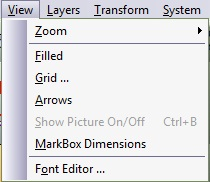
Figure 3.57. View Zoom Sub Menu

 |
Show the entire job. | Ctrl-A |
 |
Expand the job by a factor of two. (A roller-mouse can be used for this operation). | Ctrl-D |
 |
Reduce the job by a factor of two. (A roller-mouse can be used for this operation). | Ctrl-H |
 |
Define a window for new scale. | Ctrl-W |
 |
Jump to the previous zoom. | Ctrl-P |
 |
Show the selected entities (those who are marked). | Ctrl-L |
 |
Fills close shapes with color. The fill color is the color of the layer holding the shape. When filled mode is active, a checkmark is displayed beside the menu option and the button remains pressed. To cancel filled mode, repeat the command as a toggle switch.
|
 |
Define a grid to be displayed on the screen. Use this grid as a reference when operating on the image. Two grid types are available: rectangular and isometric (triangular). Refer to the grid points by selecting the mouse grid cursor. The grid is displayed by a rectangular net of small user-defined color crosses or by a net of isometric triangles. The grid is a background reference only and cannot be copied to the clipboard.
Figure 3.58. Grid Parameters Dialogue 
Figure 3.59. Grid Display Options 
|
 |
Vector directions can be displayed or hidden by turning this option on or off. |
 |
Loading a raster image file as a background is a very useful tool for both digitizing and for general reference. The background picture can be displayed or hidden by toggling this function. Select from the menu or press Ctrl-B to toggle between showing the picture and hiding the picture. |
 |
Creates new fonts and edits existing fonts. Select from the menu. The Fonts dialog box appears. Figure 3.61. Fonts Dialogue  Select the font to edit and press OK to open the Font Editor dialog box. Figure 3.62. Fonts Editor Dialogue 
|
| |
 |
|
| Edit Menu |  |
Layers Menu |
![[Note]](../images/note.png)


