| Transform Menu | ||
|---|---|---|
 |
Chapter 3. GraphiCAD |  |
| Transform Menu | ||
|---|---|---|
| |
Chapter 3. GraphiCAD | |
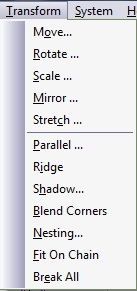
Figure 3.66. Transform Menu
Abstract
The transformations are set of operators that are performed over marked entities. If no entity is marked, the Transform menu items will be grayed. Below is a very brief summary of the Menu options.
 |
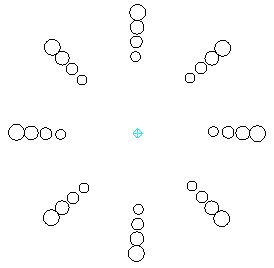
Move or copy objects to a new location. The anchor point defines the reference point on the object or group. An anchor may be selected by one of the following nine (9) points around the object: the four corners, the four mid-edges, and the center. The default is the anchor on the screen.
Figure 3.67. Transform Move Absolute Dialogue 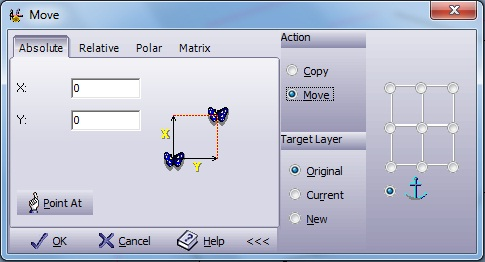 The Advanced Mode Button Figure 3.68. Transform Move Absolute Advanced Dialogue The Advanced Feature Section appears in all four modes (Absolute, Relative, Polar and Matrix) and contains the following options:
Figure 3.69. Transform Move Relative Dialogue 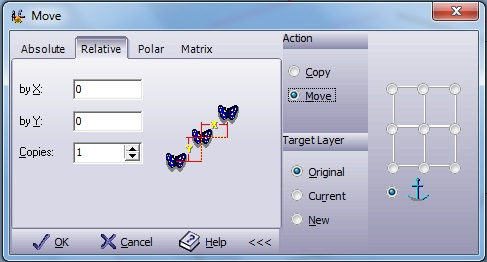
Figure 3.70. Transform Move Polar Dialogue 
Figure 3.71. Transform Move Matrix Dialogue 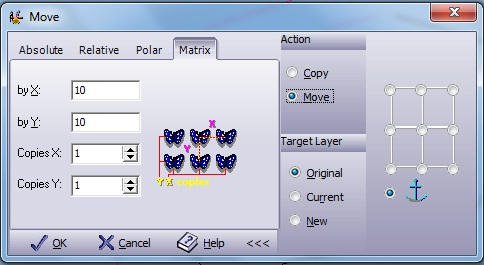
|
 |
Change the angle of an element or group.
Figure 3.72. Transform Rotate Angle Dialogue  The Advanced Mode Button Figure 3.73. Transform Rotate Angle Advanced Dialogue The Reference Point Section is in all three modes (Angle, Full Circle and Matrix) and contains the following options:
Figure 3.76. Transform Rotate Full Circle Dialogue 
Figure 3.77. Transform Rotate Matrix Dialogue 
|
 |
Change the scale size of an object. Mark the element or group of elements to be scaled and select from the menu. The Scale dialog box appears and displays the current dimensions of the object. You can scale the object manually, by height, width, or by percentage.
Figure 3.79. Transform Scale Single Scale Dialogue  The Advanced Mode Button Figure 3.80. Transform Scale Single Scale Advanced Dialogue The Reference Point Section is both modes (Single Scale and Multiple Scale) and contains the following options:
Figure 3.81. Transform Scale Multiple Scale Dialogue 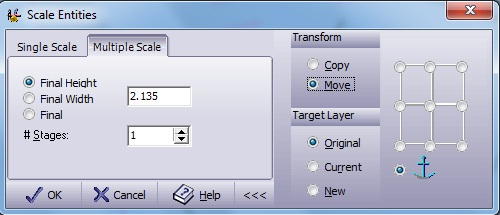
|
 |
To reflect an object over an axis of symmetry, select the function in the menu. The following dialog box appears:
Figure 3.83. Transform Mirror Dialogue  The Advanced Mode Button Figure 3.84. Transform Mirror Advanced Dialogue
|
 |
Enables you to place boundaries consisting of lines and arcs around a marked group in order to change and move them. You can modify the shape of the boundary, and the shape of the group will be transformed to fit the geometry of the new boundary. A new (stretched) group appears beside the old (basic) group. Select from the menu. The Stretch Parameters dialog box appears:
Figure 3.85. Transform Stretch Box Dialogue 
|
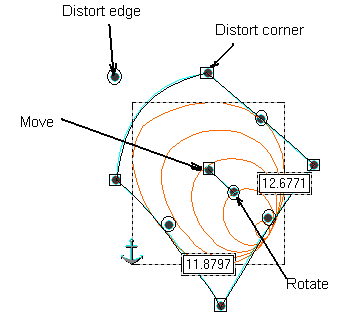
The Stretch Box is a closed set of lines and arcs that bound marked elements. Ten control points are displayed in this box.
The circle in the center is used for moving the whole group. Select the center circle and drag it to a new location. Use the circle in the four corners of the Stretch Box to stretch the corners. Drag a corner with the mouse and then release the mouse button.
Use the small circle at the center of each boundary line or arc to move the boundary.
Moving the center circle will relocate the marked entities without distorting them.
Moving the small circle that is connected to the center square will rotate the marked entities without distorting them.
The ten control points can be limited to a certain motion according to the motion control switches in the Stretch Parameters dialog box. Use Esc to exit the function.
Figure 3.86. Stretch Points Example
To define the shape of the default stretch box, select one of the six options in the upper part of the main Stretch Parameters dialog box. Enter the necessary parameters for each selection when prompted. Note that the stretch box may later be altered freely and that the pre-defined options may also be used as a starting point only.
The right part of the main Stretch Parameters dialog box controls the way in which the stretch box will behave. The pre-defined options set the Stretch Box to a starting point. If you wish to manipulate the Stretch Box manually, the following options are provided in the right part of this window:
| Center X | This is the X coordinate of the center of the default stretch box (i.e. the center rectangle). |
| Center Y | This is the Y coordinate of the center of the default stretch box (i.e. the center rectangle). |
| Rotation | The entire stretch box can be rotated around the center point at a given angle. |
| Arcs XY | By moving the control points, all sides of the Stretch Box turn into arcs. This is the system default. |
| Arcs X | Arcs can be created only in the horizontal direction. In the vertical motion, the center control point will move the element up or down but will not form an arc. |
| Arcs Y | Arcs can be created only in the vertical direction. In the horizontal motion, the center control point will move the element left or right but will not form an arc. |
| Lines | This option disables all arc bounding possibilities. It is used to create a linear or angular stretch. |
| Free | This indicates no limitations in the way the Stretch Box can move. When using this control mode, each control point moves independently of any other control point. This is the system default. |
| Follow | Moving a control point on one side causes the control point on the opposite side to move in the same direction. For example, if you move the upper right control point up and to the right, the upper left control point will move the same distance in X and the lower right control point will move the same distance in Y. The middle edge points can be moved freely. |
| Mirror | Moving a control point on one side will cause the control point on the opposite side to move in the opposite direction. For example, if you move the upper right control point up and to the right, the upper left control point will move in the opposite direction, and so will the lower right control point. |
Select Box to define the height and width of a rectangular Stretch Box. The default values are the current Height and Width of the marked elements. This option creates a stretch rectangle with the new dimensions.
Figure 3.87. Transform Stretch Box Dialogue
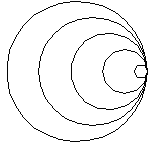
Select Circle to enter the Radius for a Circle Stretch. The resulting Stretch Box appears as a circle, and activating the stretch will give the effect similar to that of a fish-eye camera lens.
Figure 3.88. Transform Stretch Circle Dialogue

This option is useful for text that has to be set on an arc and distorted to be wider at the outer radius than at the inner radius. Select Section to define a Section Stretch. Enter the external Radius and the delta radius H of the section, the Start Angle and the End Angle. H is the difference between the outer radius and the inner radius. Mirror images by entering an end angle that is smaller than the start angle.
Figure 3.89. Transform Stretch Section Dialogue

Slant the image sideways. When prompted, enter the height and width of the new group and the slant angle.
Figure 3.90. Transform Stretch Skew Dialogue

Select Trapeze to give the stretch image a trapezoidal shape. When prompted, enter the width, height, and Angle of the trapezoid.
Figure 3.91. Transform Stretch Trapeze Dialogue

Give the stretch box a banner look. When prompted, enter the banner width. Different left - H2 and right - H1 heights can be entered.
![[Note]](../images/note.png) |
Note |
|---|---|
|
D1 and D2 can be negative or positive. |
Figure 3.92. Transform Stretch Banner Dialogue

 |
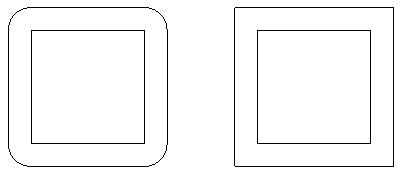
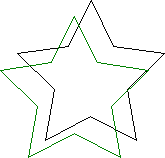
The Parallel feature is a unique function that enables you to create an offset image next to a selected image. The effect creates a double line on lines and curves. Concentric circles are created for circles, and a frame effect is created for rectangles. To define the Parallel parameters, select from the menu.
Figure 3.93. Transform Parallel Dialogue 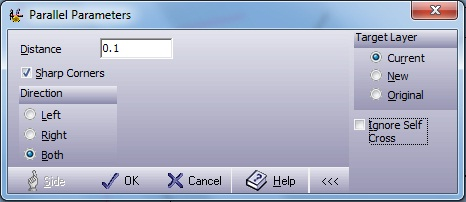 The Advanced Mode Button Figure 3.94. Transform Parallel Advanced Dialogue
|
 |
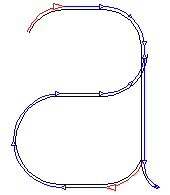
Replace a single line contour with a closed contour with the width and shape specified in the GraphiCAD tab of the → . Default width of 0.01 units and round shape. The function will automatically offset and trim all the chained elements.
Figure 3.99. Transform Ridge Example 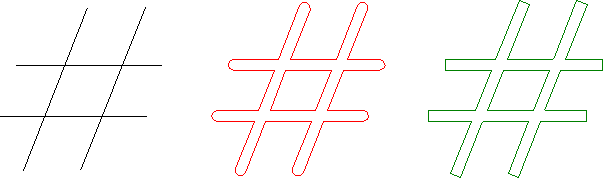 Original countor -> Ridge, Sharp Corners Un Marked -> Ridge, Sharp Corners Marked This function is extremely important when a stamp has to be made out of single line characters or other geometries. After the ridge is performed, an offset (parallel) or milling offset contour is achievable. |
 |
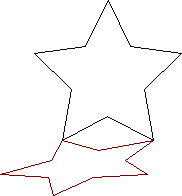
Powerful function that adds a drop shadow behind or in front of the shape. This results in a 3D effect on the shape. A shadow can be attached to any of the drawn shapes in Ground or Wall projection. Select from the menu to set Shadow parameters:
Figure 3.100. Transform Shadow Dialogue 
The shadows will always be created on a new layer. Press to apply the changes. Press to exit without changes. |
 |
Changes all the sharp corners along marked chain of entities to round corners in a constant radius. Figure 3.103. Transform Blend Corners Example 
|
 |
Arranging the job parts in the optimal way in order to minimize material waste. Before operating this function, mark the geometries to be arranged and those that represent the billet shape and dimensions. Figure 3.105. Transform Nesting Dialogue 
|
 |
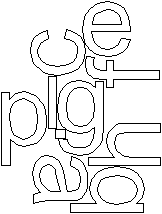
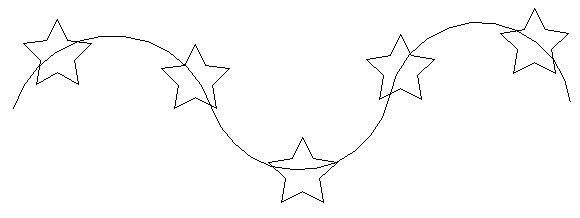
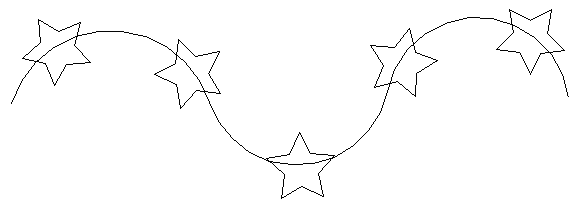
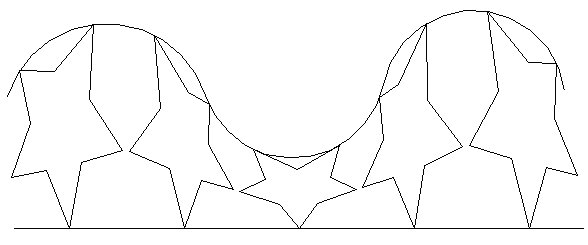
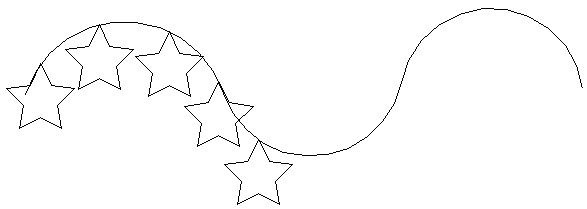
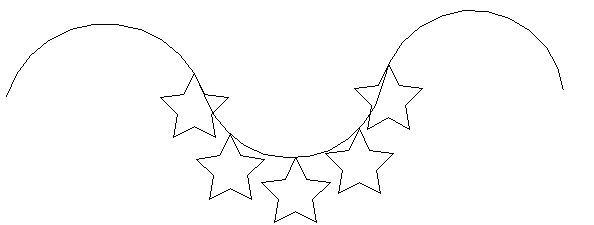
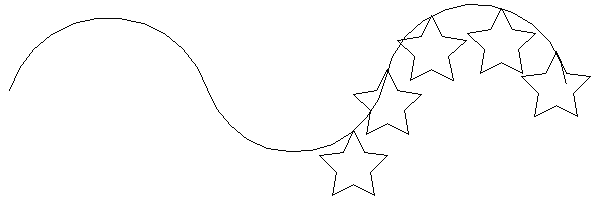
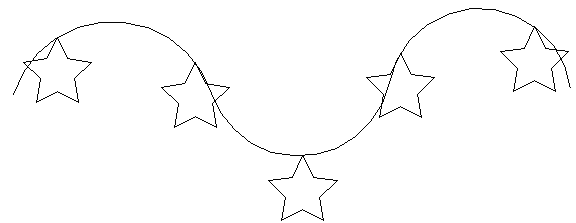
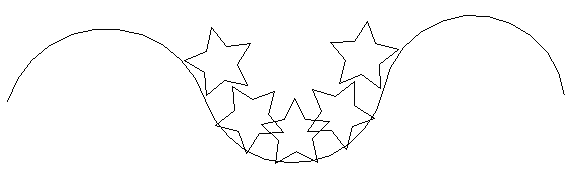
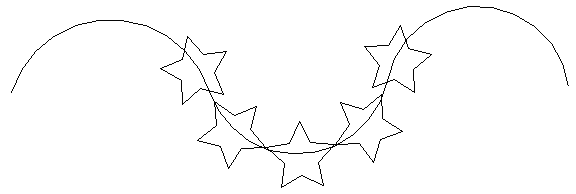
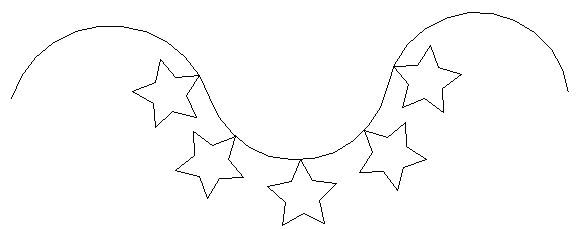
Enables you to fit marked geometric entities onto a selected chain. Mark the element or group of elements to be transformed and either click on the Fit on Chain icon, or, select from the menu. The Fit Marked on Chain dialog box appears with a default of the previously selected options. Chose your options from the dialog box and click ; the dialog box disappears and the work area reappears. With the cursor click on the chain you want the entities to be placed on. Figure 3.108. Transform Fit on Chain Dialogue 
|
 |
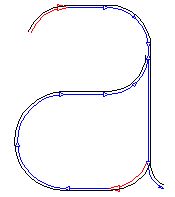
Disconnects all marked intersecting entities. Mark the entities to be disconnected by either clicking on the Break All icon, or, selecting from the menu. The disconnections are only visible by activating the Arrows option. Either click on the Arrow icon, or, select from the menu. The diagrams below illustrate how an image would look; Figure 3.122. An image with Break All activated. 
Figure 3.123. An image with → activated before activating . 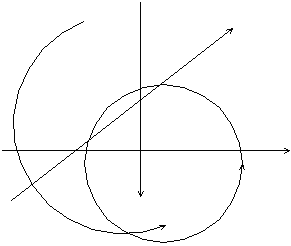
Figure 3.124. An image with → activated after activating . 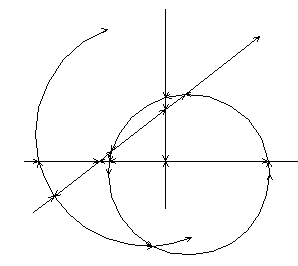
|
| |
 |
|
| Layers Menu |  |
System Menu |