File Menu

Figure 4.1. File Menu

File menu

Use the File menu to open, save, rename, print, and close your files. You can also use the File menu to setup the printer, and exit the application.

FileNew

File new icon
New is used to clear the current window and start a new project. If the current window contains information, you will be prompted with the question "Save Current Job?". Answer Yes to save the information and begin a new project. Press Cancel to return to the current project.

FileOpen

File open icon

The Open option prompts you with the standard Open File dialog box. Select the name of the file you want to edit. The system will load the file from the source disk. The file contains all the information about the job.

The system can open the following file types:

  • *.p2p; Picture to Part default internal format.

  • Picture to Part Script files (GSP command description files without the surface)

  • *.csn; CopyMatescan file.

  • *.pun; Renishaw machine output from a 3D digitizer.

    Figure 4.2. Renishaw to P2p Converter Dialogue

    Renishaw to P2p converter dialogue

    When selecting the Renishaw measure file format, the Renishaw to P2P converter dialog box will open. This shows the surface dimensions, the file properties, and enables you to define the tolerance with which you wish to read the file. The PUN files must be ordered in parallel lines forming complete rectangles along X and Y-axis.

    The drawing on the left side shows the pun file dimensions and location. The green data shows the scanning data density: the minimal distance between two sequential points and the distance between the parallel digitizing lines.

    The user should set the Tolerance input field to the desired tolerance. Interpolations take place whenever the tolerance is smaller than the distance between neighboring points.

  • *.iso; Cloud of Points for Reverse Engineering purposes. The Cloud of Point can be in any order or random XYZ points

    Figure 4.3. Cloud of Points Dialogue

    Cloud of poiunts dialogue

    When selecting the Cloud of Points file format, the Cloud Of Points dialog box will open. This shows the scanned data bounding rectangle dimensions. The number of points is also displayed in the top right corner of this dialog box.

    Since the Cloud of Points may be in random order, use the slider to indicate the level of accuracy you want to achieve. If the data is too sparse in certain areas of the scanned data, a cubic interpolation is made between other points in the area.

    Min Patch Size and Max Patch Size fields indicate the minimal and maximal fractal sizes in the final Picture to Part surface. In order to increase accuracy, decrease the Min Patch Size value.

    To increase speed and smoothen the Picture to Part surface in flat areas, increase the Max Patch Size value. These values are set in the system units (mm/inch) unless a % symbol is shown beside these fields. In the % mode, all the values are calculated as a % of the maximum (DX, DY) dimension.

    The slide bar indicates the accuracy on the scanned image.

    If the Fill in Gaps checkbox is marked, then Picture to Part will try to close "holes" in the ISO file. "Holes" - parts where the distance between neighboring points is big.

    If the Trim slopes checkbox is marked, then all walls with angle bigger then entered in the text box will be trimmed.

    Zero Surface: Click on the drop down menu to reveal the following options: Original, Bottom and Top. Selecting the Zero Surface at the bottom implies that all contours are above zero. Selecting the Zero Surface at the top implies that all contours are below zero. Selecting the Zero Surface at the original implies the contours are listed as they were scanned.

    Shoulders: Enables you to include additional surface to the edge of an object. Click on the drop down menu to reveal the following options:

    Shoulders options combo box

    Select one of these options (other than None) to enable the Width text box. Insert the amount of width you require and click OK.

  • *.m; Sharnoa Laser output from a 3D laser probe.

    Refer to the Cloud of Points item for more details.

  • *.pix; Roland Picza™output from a 3D mechanical probe.

    Refer to the Cloud of Points item for more details.

  • *.asc; Grid ASCII files for interfacing with previous versions or other products.

    [Note] Note

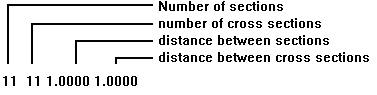
    The format of *.asc as in Figure 4.4, “ASCII File Format” .

    Figure 4.4. ASCII File Format

    ASCII file format

    All the lines below the first one are X, Y, and Z coordinates.

  • *.cnc; G-Code (ISO) for Reverse Engineering purposes. The G-code supports linear moves using XYZ coordinates.

    Refer to the Cloud of Points item for more details.

  • *.stl/*.sla; Stereo Lithography files.

FileInsert

File insert icon
Enables you to insert any number of saved files, and to place them into the work area of the application. Each inserted image is placed in its own individual component. In addition all inserted images can be viewed and worked on together in assembly mode.

FileSave

File save icon
To save a file, select the FileSave option from the menu. The file will be saved under the current edited file name, which is displayed in the current window menu bar.

FileSave As

File save as icon

Saves a job under a new file name. Saving under a new name provides the possibility of keeping different versions of the same project disk.

The system can save a job in the following file types:

  • *.p2p; Picture to Part default internal format.

  • Picture to Part Script files (GSP command description files without the surface)

  • AutoCADDXF (*.dxf)

    Figure 4.5. Export Accuracy Dialogue

    Export accuracy dialogue

    Choose the number of patches to output. The more patches you include, the file will grow in size and in details! Mark Zero Surface in order to output patches with Z=0.

  • *.igs; iges file.

    Refer to the DXF item for more details.

  • *.stl/*.sla; Stereo Lithography files. ASCII and Binary format.

    Refer to the DXF item for more details.

  • *.asc; Grid ASCII files.

    Refer to the DXF item for more details.

  • *.wrl; VRML Virtual Reality Modeling Language (Internet standard for 3D display)

    Refer to the DXF item for more details.

  • *.iso; Cloud of Points.

    Refer to the DXF item for more details.

  • *.m; Sharnoa Laser output from a 3D laser probe.

  • *.slc; Slices file for prototyping machine.

  • *.bmp; bitmap raster image.

  • *.tif; Tag Image File Format raster image.

  • *.jpg; Joint Photographic Experts Group raster image.

FileImport

FileImportJewelCAD

File import JewelCAD icon
Receive 2D entities from JewelCAD to the application.

FileExport

FileExportJewelCAD

File Export JewelCAD icon
Send 2D entities from the application to JewelCAD.

FilePrint

File print icon

Open a dialogue with an on-screen impression of the image to be printed.

Figure 4.6. File Print

File print

V icon Print Automatically prints all the displayed items.
Printer icon Printer Opens the Print Setup window.
Position

Moves the image in the Print Preview area. To move the image either insert a number, or click on the arrows. Position movement is in units.

Using the Scale box, change the image size.

Center icon Moves the image to the centre of the Print Preview screen.
Scale 1:1 icon Present the image in a 1:1 scale.
Fit icon Scales the image to fit the Print Preview screen.
Thickness Define line thickness for printing.
Add Enables you to include remarks to the printed image. These remarks will not be displayed in the working area of the module. Select Date to include the date in a day/month/year format. Select Scale to add the scale ratio. Select Comment to add remarks to the image in the Print Preview window.
Copies Insert the number of printed copies required.

FilePrint Setup

File print setup icon

To send a printout to a printer other than the default printer. The Print Setup window enables you to select an available printer. The printer options depend on the drivers previously defined in your Microsoft Windows™.

Figure 4.7. Print Setup Dialogue

Print setup dialogue

To change the selected printer setup, press Properties. Press OK to update your printer or press Cancel to exit without changes.

FileExit

File exit icon

Select Exit from the File menu, or press Alt-F4 to exit the application. If there is an unsaved file, you will be prompted to save the image before the program closes. Select from the following:

Yes Save the files before closing the program.
No Close the program without saving.
Cancel Return to the application without exiting.