| Component Menu | ||
|---|---|---|
 |
Chapter 4. Picture to Part |  |
| Component Menu | ||
|---|---|---|
| |
Chapter 4. Picture to Part | |
Figure 4.28. Component Menu

Abstract
The Menu is the basis for all the fractal and mesh surface manipulation commands. It is from here that you work with individual geometries and surfaces.
![[Note]](../images/note.png) |
Note |
|---|---|
|
The Menu cannot be used when in assembly mode. |
: Takes 2D shapes and emboss them due to cross section and symmetry definitions.
: Design simple mathematical mesh surfaces.
: Applies repetitive 3D textures on the embossed surfaces. These textures are user-defined and may involve random parameter to give some "handmade" touch to the textures.
: Resets whole or marked surfaces back to its initial status.
 |
Creates a new Component tab. |
 |
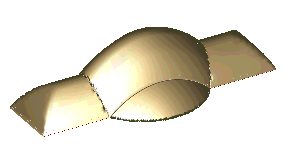
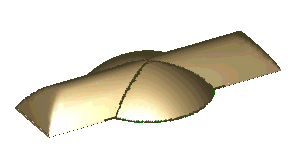
The function applies a characteristic cross section on the area bounded by a closed or open 2D group. A group may contain one or more contours. A group that contains a number of closed shapes will automatically cause the system to use an in-out algorithm in order to define what is in and what is out. Areas that are in will be affected, and areas that are out will not be affected. may be applied to open contours with fade effect. To display the Emboss Definition dialog box, select the option from the menu, click on the icon, or press F2. The dialog box below appears: Figure 4.29. Select Groups Dialogue 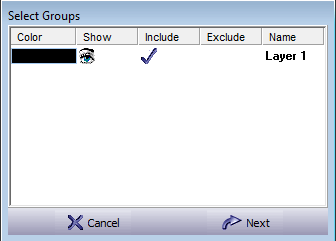 You should set the groups for embossing: Select the Inc (Included) group for groups to be embossed. Select the Exc (Exclude) group for groups to be ignored by the embossing process. At this stage you should press to continue, or to stop. Figure 4.30. Setting Parameters For Embossing Dialogue  In this dialog box, you may view and edit the cross section. This view holds two definitions: the Section and the Symmetry. Pre-defined sections are displayed on the right side of the dialog box. Select one of these pre-defined sections to apply this cross section to the geometry. The bottom part of the dialog box displays switches that define the way in which the section will be applied on the surface. There also features an advanced window function. Press
on the
Setting Embossing Parameters - Section View. Each cross section can be customized, and control points on the sections may be edited. These control points are indicated by small circles (curve control points), or small rectangles (end control points). Pressing the mouse button over this area invokes a pop-up menu.
Table 4.3. Section Definition
Figure 4.31. Cross Section Menu 
Table 4.4. Surface Type
Table 4.5. Emboss Type
Setting Embossing Parameters - Symmetry View. Each cross section can be embossed in a symmetric or a non-symmetric way. The non-symmetry feature let you sculpt special effects such as water drops, cloth folds and so on. To get into the symmetry definition, select Symmetry at the top of the section view. Figure 4.32. Setting Parameters For Embossing Symmetry Dialogue 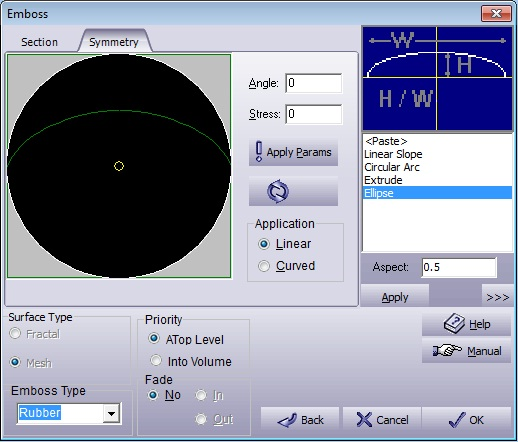 As shown, the elliptical default section is displayed stretched (embossed asymmetrically). The embossing is influenced to the 45° direction. The stress value is on the scale of 0 (symmetric) to 1.0 (most influenced). Changing the stress direction and magnitude can be done either by typing the values into the edit boxes and pressing , or by dragging the small circle around with the mouse.
Merge Into Part. The sections can be embossed in two different combinations:
Fade open contours. Select In/Out to commit fade affect on the section. When this option is not selected, open chains will be closed automatically by imaginary straight lines. This option applies only to open chain images.
|
 |
The is similar to the command. A characteristic cross section will be applied on the area bounded by the 2D group. A group may contain one or more contours. To activate select from menu or click on the relevant icon. A wizard will walk you through the process of creating the ruled surface. Surface Type. Figure 4.42. Wizard Page 1, Surface Type 
We can select from creating a surface from a single flow line (I), creating a surface from two flow lines (II), and creating a surface from two flow lines and a Z guide line (III).
First
we need to click on the flow line we need, afterwards we can select a
starting
point by clicking on the "set
flow line starting point button". Another
option we can use is to set the flow line direction by clicking on the
button This
is how the start point and the direction looks like: After we finished setting up the flow line we will press next and receive the parameters page parameters,
Figure 4.43. Wizard
Page 2, Parameters
The parameters we can use are: Section alignment: normal alignment or vertical alignment. Contour type: the contour type we use lines or curves. Edges: the surface edge from upper right to left, upper left to right and center.(in two flow lines and two flow lines with a z guide line we have only the center edge) Figure 4.44. Wizard
Page 2, sections 
On the sections part we can choose how our surface sections will look like. We
can
copy a section to use or use an old section we used by copying it and
paste it
on the section preview, after every change we made on the section
preview we
need to press on apply button . We can also save the section we used so we can use it later on a different project. These buttons written under display the capabilities of creating a surface by placing sections as we require and we can use different sections on the same part.
When the section we wish to add is ready we just need to add him to the surface by using the marking on the flow lines, afterwards we will directly receive the result. and don't forget we can always remove the section if the result is no good for us. |
 |
This function creates a 3D surface based on the picture shade analysis. Choosing this command from the menu, or pressing the button, or pressing F4 will bring up the following dialog box: Figure 4.43. Select Groups Dialogue You should set the groups for shade analysis: Select the Inc (Included) group for groups to be embossed. If no groups are marked, you can press anyway. The bitmap will be completely embossed, regardless if there are any groups. Select to open the file retrieval window. Select the picture you want to emboss. Select ; for the following embossing dialog box to open: Figure 4.44. Shade Analysis Definition Dialogue  This command performs calculations regarding the shades on the surface according to the previously defined parameters in the Shade Analysis Definition dialog box. This dialog box is divided into four main sections:
Select to apply changes. Select to exit the function without changes. Figure 4.46. Shade Analysis Example 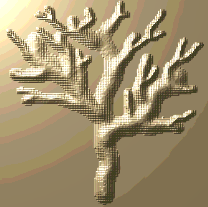
|
 |
Create mathematically definable surfaces. Select this menu item to create the following surfaces through the simple dialog box:
The Range section in the dialog sets the surface boundaries. The range is rectangular, except for the function polar system where the range may be defined by different angle/radius: Figure 4.47. Define Surface Range Input 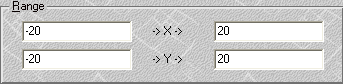 Define the range of minimal and maximal -> X -> and -> Y -> values to define the patch limits. Press to accept the setting for the surface. Exit without changes by pressing . Press to open the On-line Help. Spherical Surface. To define a spherical surface, select Sphere tab. The Define surface dialog box should look like the dialog box below. Figure 4.48. Define Surface Sphere Dialogue 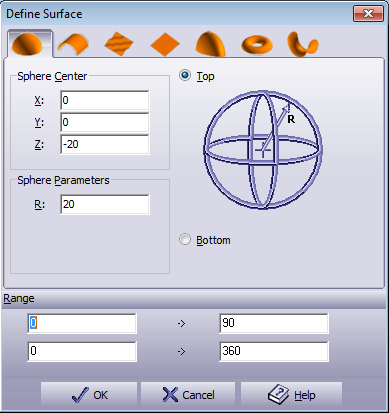
Conical and Cylindrical Surface. To define a conical or cylindrical surface, select the Cone tab. The following dialog box appears: Figure 4.49. Define Surface Cylinder Dialogue 
Figure 4.50. Cone on X-Axis, Bottom 
Function Surface. To define a surface by a function, select Function tab. This option creates a surface by interpreting the given mathematical function. The following dialog box appears: Figure 4.51. Define Surface Function Dialogue 
Planar Surface. To define a planar surface, select Plane tab. The following dialog box appears: Figure 4.52. Define Surface Planar Dialogue 
Ellipsoid Surface. To define an ellipsoid surface, select the Ellipsoid tab. The following dialog box appears: Figure 4.53. Define Surface Ellipsoid Dialogue 
Toroid Surface. To define a toroid surface, select the Toroid tab. The following dialog box appears: Figure 4.54. Define Surface Toroid Dialogue 
Dual Radius Surface. To define a dual radius surface, select the Dual Radius tab. The following dialog box appears: Figure 4.55. Define Surface Dual Radius Dialogue 
|
 |
To create a drive for a surface, select from the in the menu. The section to be extruded is the marked group from the Group List. The following window appears: Figure 4.56. Extrude Dialogue  A preview of the extrude section will appear in the box on the right. While editing this dialog box, use options to preview the design before accepting it.
Press to create an extrusion surface. Exit without changes by pressing . Press to open the On-line Help. |
 |
This option is used to create a surface of revolution. The section to be revolved is the marked group from the Group List. The following dialog box appears: Figure 4.57. Revolve Dialogue 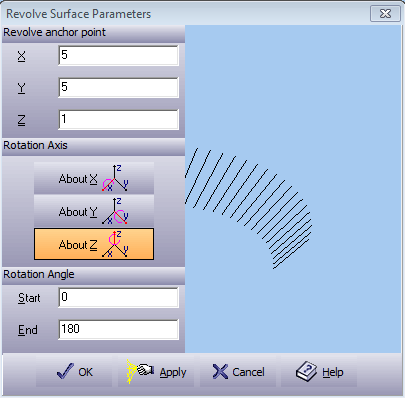 A preview of the rotation section will appear in the box on the right. While editing this dialog box, use options to preview the design before accepting it.
Press to create an rotation surface. Exit without changes by pressing . Press to open the On-line Help. |
 |
The Picture to Part module has simplified applying textures on a surface. You can now create almost any image as texture and apply it to the surface. Using this option you can create new user-defined 3D textures. To define a new texture, mark geometry and send it to the clipboard. Then select the → option. Selecting this option will prompt you with the following dialog box: Figure 4.58. Select Groups Dialogue Select the groups to be affected by the texture command. Pressing will lead to the Texture Input dialog box: Figure 4.59. Texture Dialogue 
To define a new texture, select <paste> at the list box, and the contours from the clipboard will be imported to the texture window. The texture files can be loaded directly into the Texture Definition dialog box by selecting them from the list. The texture will be applied inside all marked groups. Unmarked areas remain untouched. After defining the Texture parameters, select , to open the Emboss window. |
   |
As in sculpting by hand, part of finishing the job is to polish or smooth down rough areas. Picture to Part defines three levels of smoothing: , and . The smooth action will polish and soften the surface area only on those areas that are marked. Areas that are not marked will remain untouched. The smooth function can be repeated for deeper smoothing. |
 |
This function enables you to flatten a surface between two Z level values into a selected Z value. All the surfaces between these levels will be equalized to the selected value without touching the surfaces outside the selected range. Figure 4.60. Surface Equalize Dialogue 
Press to confirm your selection, or press to abort without changes. Press to open the On-line Help menu. |
 |
Create offset surfaces in the Z-axis. Choose this option from the menu, and the Offset Value Entry dialog box will appear. This option enables you to select the offset value. Figure 4.61. Offset Value Dialogue  To offset desired surfaces:
This function is useful for planning male and female models where a gap exists between the two parts of the model. |
 |
A simple tool for giving the embossed surface a "personal touch" making it look like handmade work. The Touch function works over marked areas only. By selecting , the following input dialog box is displayed: Figure 4.62. Select Groups Dialogue Select the groups to be affected by the texture command. Pressing will lead to the Add Touch dialog box: Figure 4.63. Add Touch Dialogue 
Press to start the touch effect process. Press to return to Select Groups dialog box. Press to ignore this selection. Press to open the On-line Help menu. |
 |
Trims walls with an angle bigger then selected.
Figure 4.64. Add Trim Dialogue 
Press to start the touch effect process. Press to return to Select Groups dialog box. Press to ignore this selection. Press to open the On-line Help menu. |
 |
Align surface to the XY plane. Click the surface on three points. The three points are used to define a plane. |
  |
This function sets the surface back to the initial status (zero level). It is possible to reset the entire surface using the option or an area bound by the marked groups using the option. |
| |
 |
|
| View Menu |  |
Assembly Menu |