| System Menu | ||
|---|---|---|
 |
Chapter 1. Introduction |  |
| System Menu | ||
|---|---|---|
| |
Chapter 1. Introduction | |
Figure 1.6. System Menu
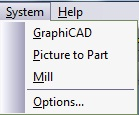
The System Menu enables you to work in different modules of the system simultaneously. The corresponding module button on the toolbar may be pressed to switch to that module.
Figure 1.7. form, Command tab

![[Note]](../images/note.png) |
Note |
|---|---|
|
The toolbars themselves can be modified at all times. To change their position or shape within the module, simply drag or resize them according to your needs. Moving and resizing the toolbars does not require the use of the Customize Toolbar command. This command is only needed when you wish to modify the actual buttons on the toolbars. |
 |
Select from the menu to change the system defaults and parameters, and also to define the measuring method for your job. The Options parameters are set in the System Options dialog box. |
Figure 1.9. form
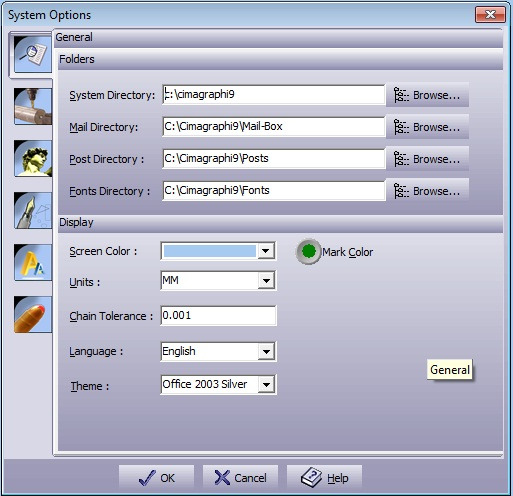
| System Directory | Defines the location of all the system files. This includes the executable files, DLL's, libraries, help files, and utility files. To change this directory, use the button on the right and point to a new directory. |
| Mail Directory | Defines the location of all the temporary files, including the private clipboard files, backup files and temporary files. To change this directory, use the button on the right and point to a new directory. |
| Posts Directory | Defines the location of all the machine drivers. This includes the provided post-processors. To change this directory, use the button on the right and point to a new directory. |
| Fonts Directory | Defines the location of all the fonts provided with the system. The system will automatically detect the Microsoft Windows™-provided True-Type fonts or any other True-Type font properly installed in Windows™. To change this directory, use the button on the right and point to a new directory. |
| Screen Color | Select the preferred background color. |
| Units | Set the work-mode units (mm or inch). |
| Language | Select the language of the system. |
| Chain Tolerance | Define the system wide size for chaining. This value defines the smallest gap to be automatically closed by the system. |
| Theme |
Define the Theme the system will use for display appearance. |
| |
 |
|
| Automatic Recovery |  |
Help Menu |